VPN setup as a RoadWarrior (No, this is not a Mad Max thing)
Setting up a roadwarrior access for a Wireguard Solution

VPN setup as a RoadWarrior (No, this is not a Mad Max thing)
One of the benefits of the hub-and-spoke setup we created in the previous post is that we can add road warriors to it. A road warrior is just a slang term for a remote user of a company accessing services back at the company through a secure connection. Many readers will be familiar with accessing services through a web browser without any additional network setup. Many SaaS services have security measures in place, like MFA, but connecting over a VPN offers additional protection. A big benefit of using a VPN for internal services is that it limits the service’s external exposure, which in turn prevents the public from trying to leverage an exploit to get in.
This blog post is part of my ongoing series where I document my process of rebuilding my digital infrastructure using open source technologies, to help others who are looking to decouple from cloud- and subscription-based SaaS services and build their own digital sovereignty. You can refer to my other post on my mission. In this blog post, we will go over adding a road warrior to our VPN setup.
Setting up the road-warrior laptop
WireGuard provides desktop clients through its website: https://www.wireguard.com/install/. For this blog, we will assume the desktop is a Mac, and installing through the Mac App Store will be the easiest route.
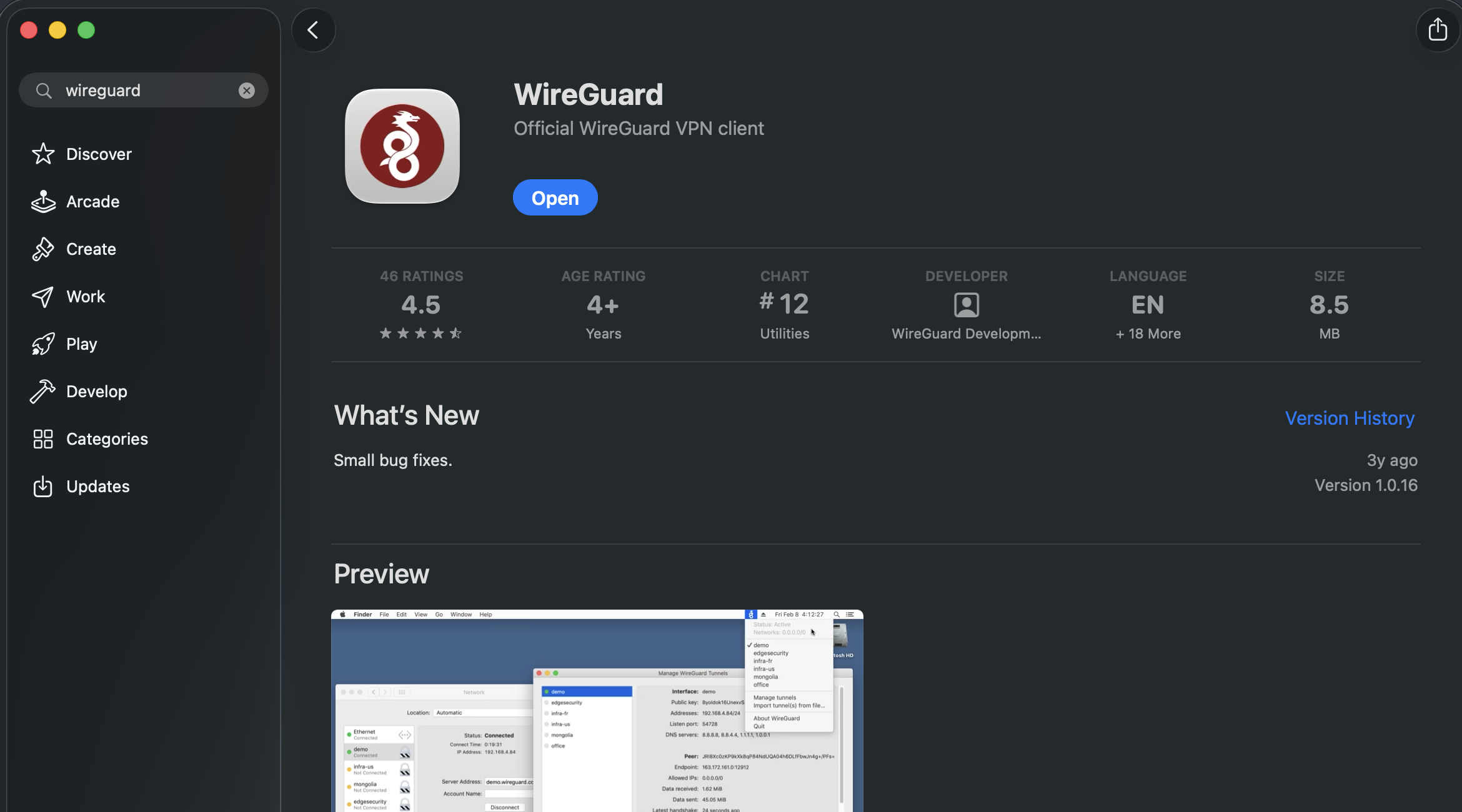
After the installation, open the WireGuard application.
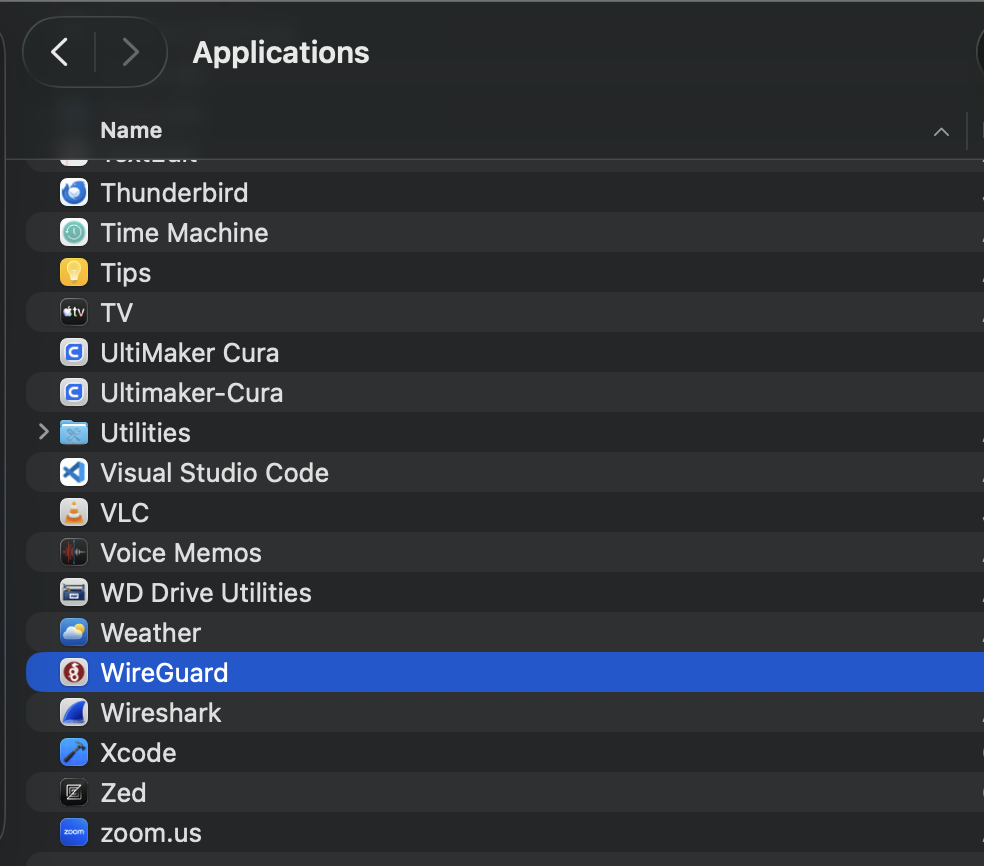
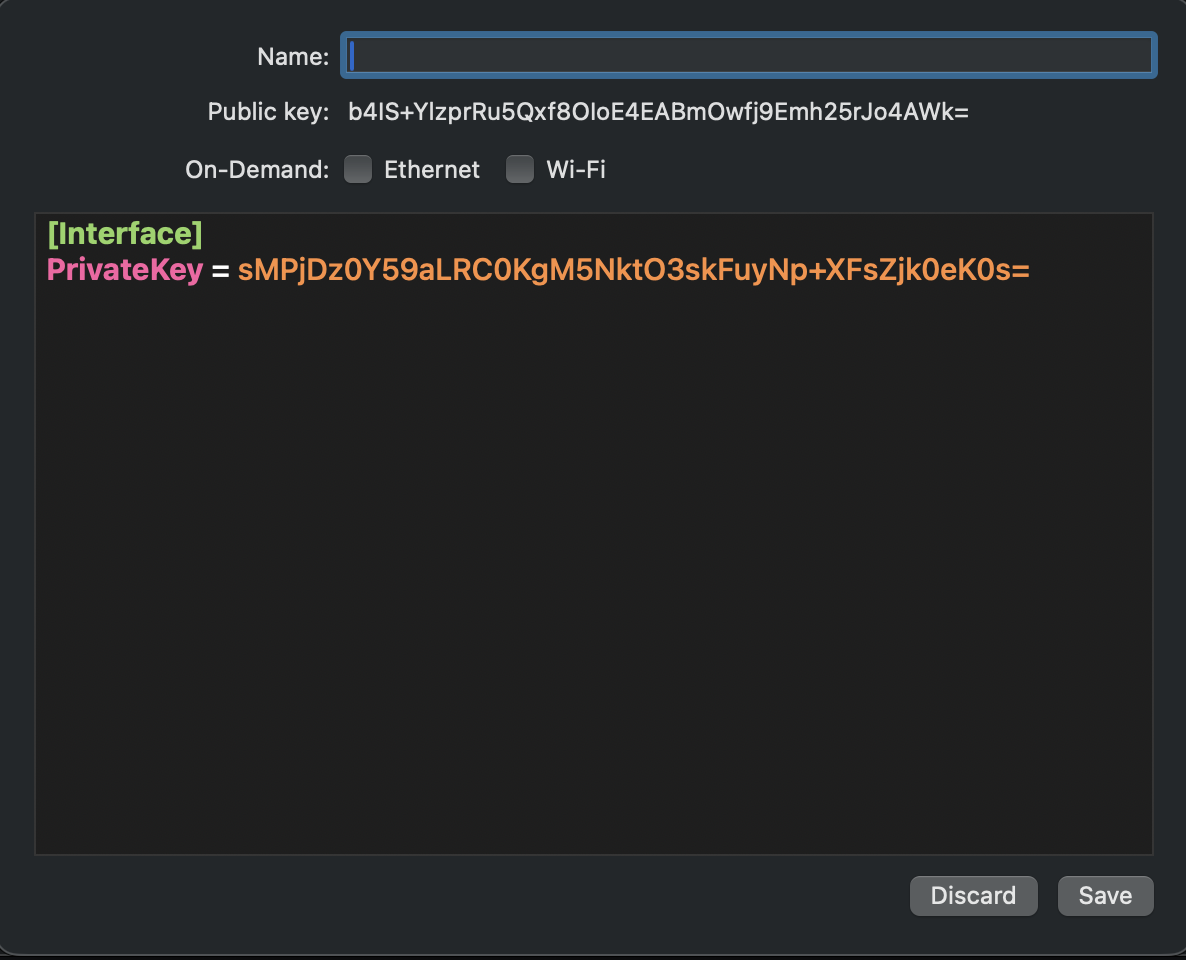
On first launch, the application should have no tunnels available.
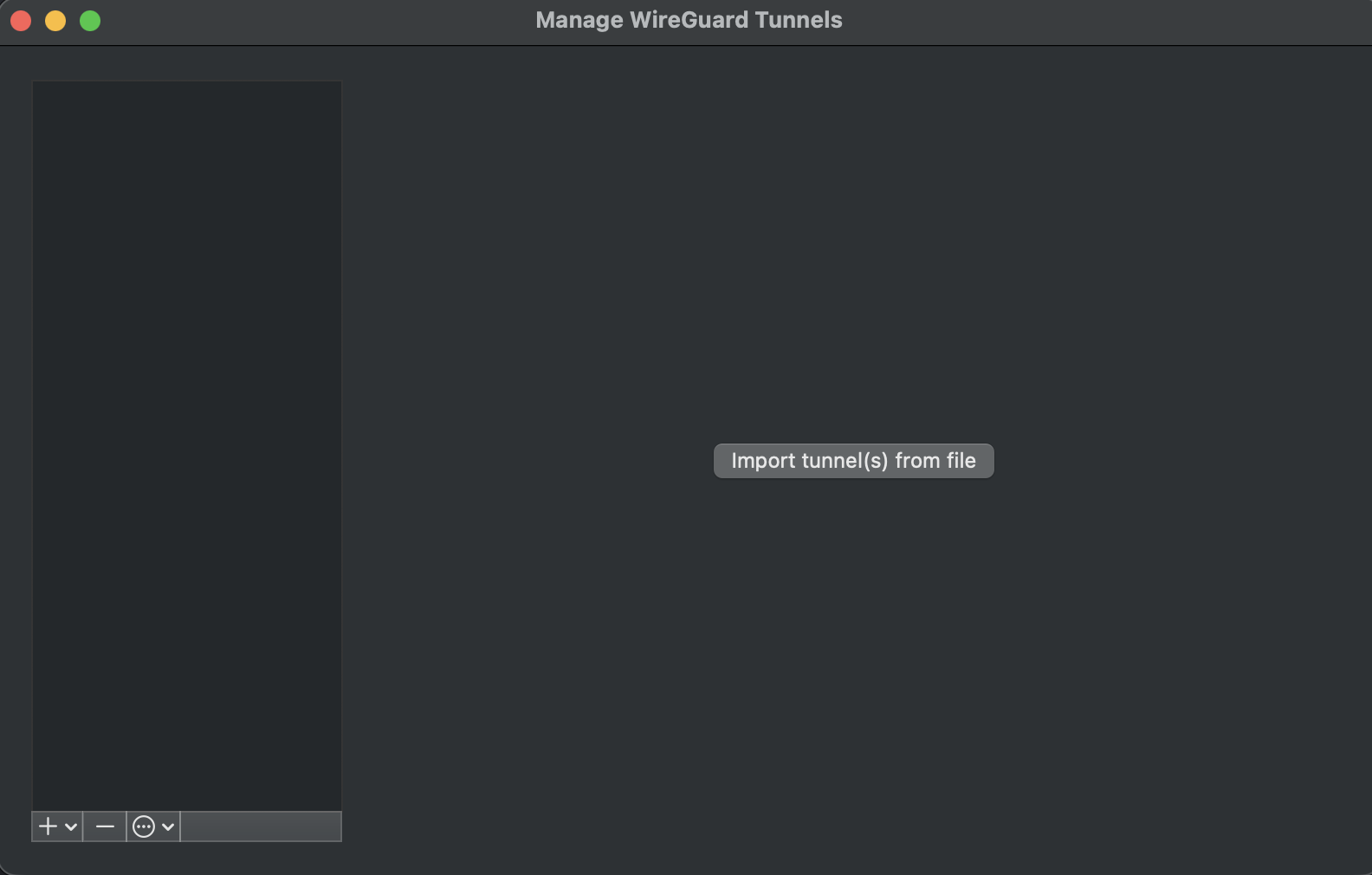
Create a new tunnel by clicking the plus sign in the left pane and select Add Empty Tunnel...
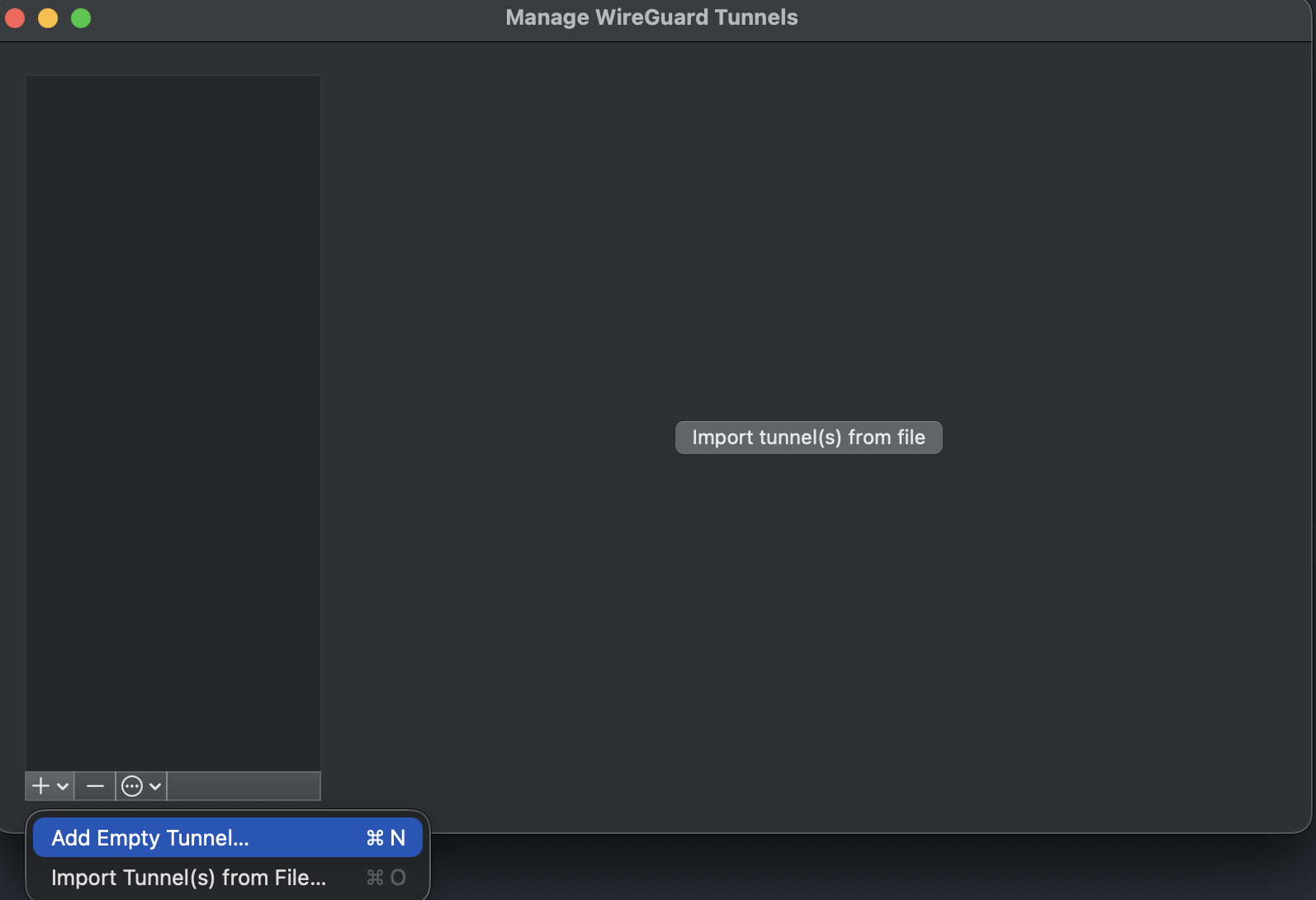
The Mac client pre-populates the public and private keys as part of the initial configuration.
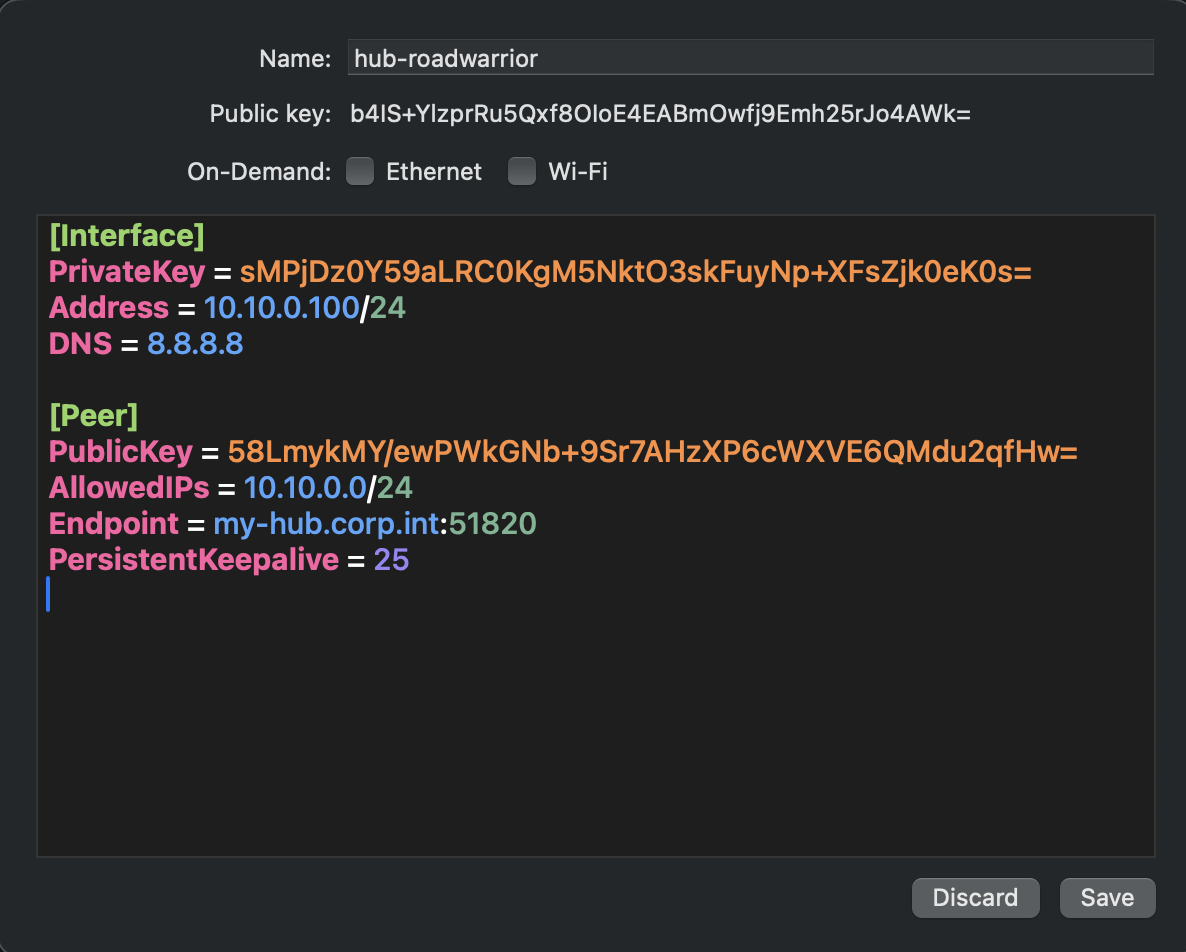
Enter a name for the configuration (e.g., hub-roadwarrior) and use a configuration similar to the OpenWrt one. In this setup, we gave the laptop the VPN IP address 10.10.0.100.
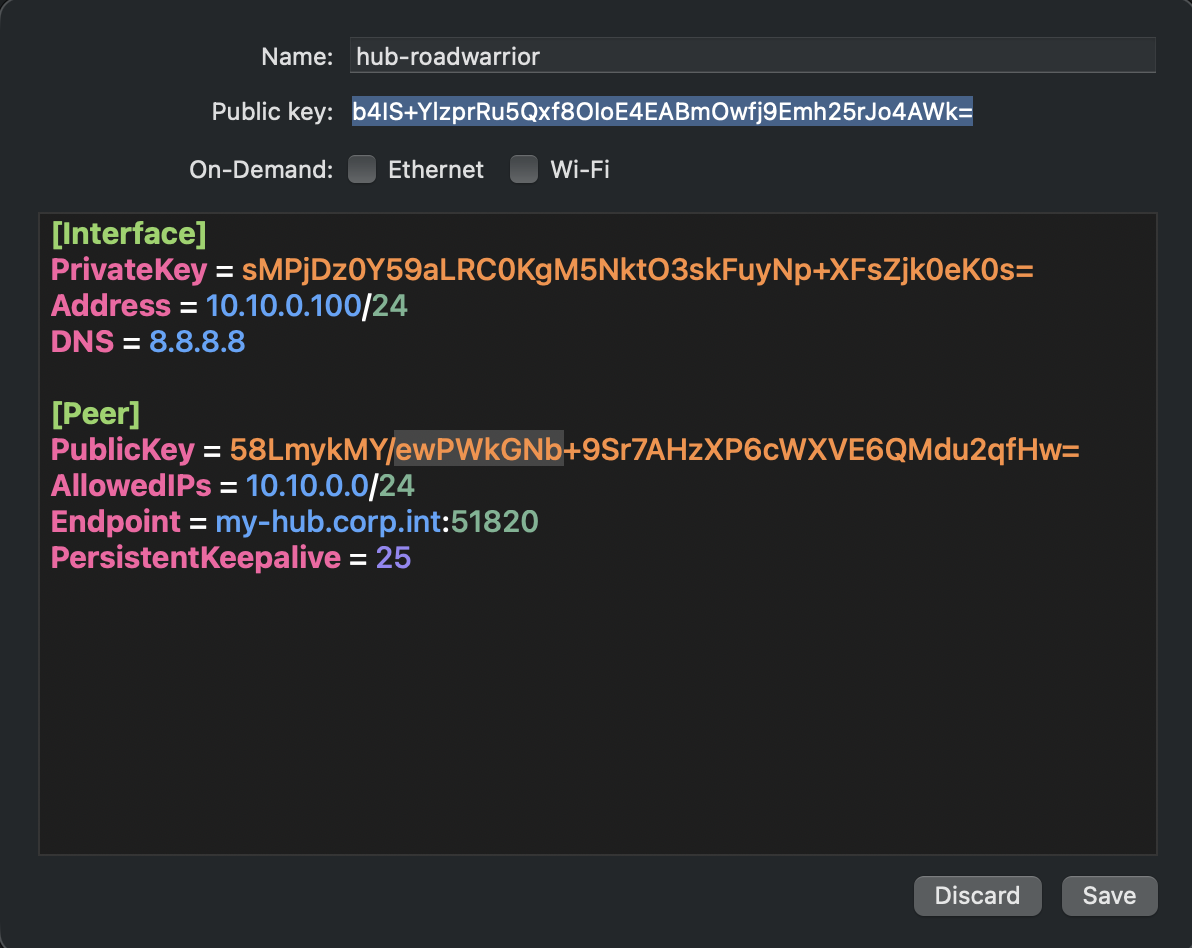
Make a note of the Public Key for the desktop client, because it will be used in the hub server configuration.
Adding the peer on the hub server
Log in to the hub server and add the following to the bottom of /etc/wireguard/wg0.conf:
# RoadWarrior 1
[Peer]
PublicKey = b4IS+YlzprRu5Qxf8OIoE4EABmOwfj9Emh25rJo4AWk=
AllowedIPs = 10.10.0.100/32Note: The public key comes from the WireGuard desktop configuration screen.
Restart the WireGuard interface on the hub:
root@hub-wg:/etc/wireguard# wg-quick down wg0 && wg-quick up wg0Activating the tunnel on the client
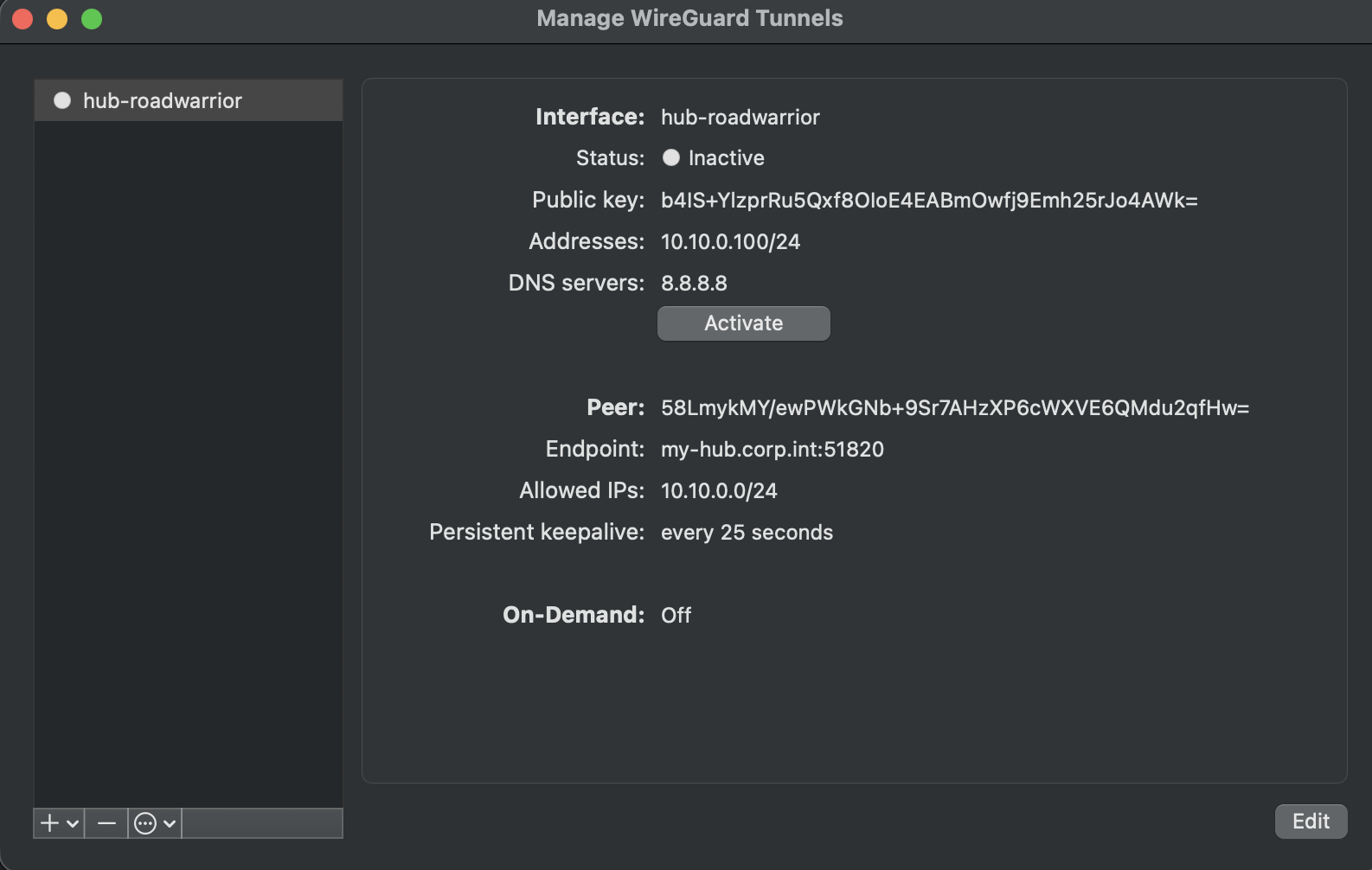
To enable the connection, click ‘Save’ at the bottom right. The configuration screen will close and the main WireGuard window will appear. Click ‘Activate’.
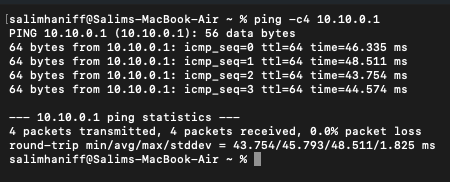
Open a terminal window and try pinging the hub server’s VPN IP.
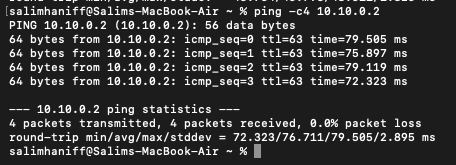
From the laptop, you should also be able to ping the OpenWrt server (10.10.0.2).
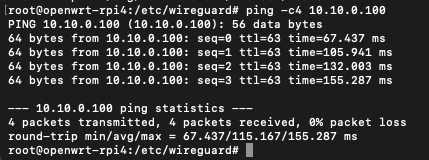
From the OpenWrt server, ping the laptop (10.10.0.100) to verify the return route is established.
What’s next
Now that our RoadWarrior laptop has connectivity through the hub to the OpenWrt server, we can bring up more services at HQ and route them through the OpenWrt server. In later posts, we will start introducing some basic services to help us out while we are on the road.