Tale of 2 cities... actually just 2 offices
Setting up WireGuard and OpenWrt

Managing IT resources in one office location is easy, but how do you handle two offices when the second one is located on the other side of the world as a solopreneur? Well, that’s the situation I am currently facing. I have one office HQ and need to set up a branch office on the other side of the world. My goal is not to duplicate all the resources from HQ to branch, but to have a seamless linkage from the branch back to HQ. Hopefully, the internet at HQ is reliable enough for this endeavour.
This blog post is part of my ongoing series where I document my process of rebuilding my digital infrastructure using open source technologies, to help others who are looking to decouple from cloud- and subscription-based SaaS services and build their own digital sovereignty. You can refer to my pillar post on my mission.
Setting up the network
Our setup will use a VPN. While there are plenty of options to pick from, I chose WireGuard because it is easy to set up quickly. The WireGuard configuration takes the shape of an overlay network with a hub-and-spoke topology. The hub server needs to be accessible to all of the ‘spoke’ clients.
In most setups, the hub server is hosted on a public cloud provider, since that lets all the spoke clients connect without a lot of additional network configuration. To do this, we will need to bring up a VPS running Linux on a public cloud provider. Hopefully, your VPS has a static IP address, so you don’t need to worry about changing the configuration files used by WireGuard. If your IP addresses do change, try using a DDNS/FQDN approach in the configuration.
Setting up the VPS as a hub WireGuard server is as simple as installing the WireGuard packages, enabling IP forwarding on the Linux server via sysctl, and configuring the WireGuard interface. The WireGuard package comes with a convenience script (wg-quick) to handle the network plumbing for you.
Setting up the hub server
Install the WireGuard packages
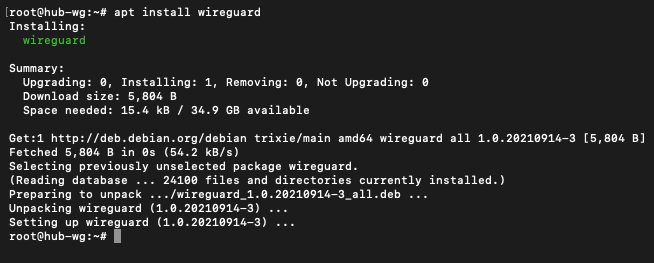
Enable IPv4 forwarding via sysctl

Create the WireGuard server configuration
First, set up the private and public keys needed for the server and client to establish secure communication:

Now, using the private and public keys, create the initial configuration stub for the WireGuard server:
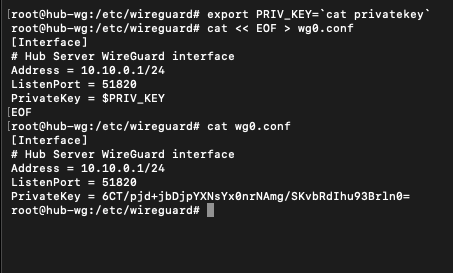
Note: the PrivateKey is disclosed in the screenshot for example purposes only — yours will have a different value. If your PrivateKey is ever leaked, regenerate the private and public keys.
The hub server is almost complete, but we need a client to add to our hub configuration before the connection between HQ and the cloud hub server can work. Let’s turn our attention to one of our servers located at the HQ site.
Setting up the HQ spoke (OpenWrt)
The server at the HQ site is running OpenWrt. The procedure for installing and configuring WireGuard is similar to that of the cloud hub server.
Install the WireGuard packages
Install the WireGuard packages from the CLI if they aren’t already installed:

Set up the WireGuard client configuration

Create the WireGuard interface and set the client’s VPN address:
root@openwrt-rpi4:/etc/wireguard# VPN_IF="wg0"
root@openwrt-rpi4:/etc/wireguard# uci -q delete network.${VPN_IF}
root@openwrt-rpi4:/etc/wireguard# uci set network.${VPN_IF}="interface"
root@openwrt-rpi4:/etc/wireguard# uci set network.${VPN_IF}.proto="wireguard"
root@openwrt-rpi4:/etc/wireguard# export PRIV_KEY=`cat privatekey`
root@openwrt-rpi4:/etc/wireguard# uci set network.${VPN_IF}.private_key=$PRIV_KEY
root@openwrt-rpi4:/etc/wireguard# uci add_list network.${VPN_IF}.addresses="10.10.0.2/32"
Now, OpenWrt needs to be configured to route traffic through the wg0 interface to our cloud hub:
root@openwrt-rpi4:/etc/wireguard# uci set network.peer_server.endpoint_host="my-hub.corp.int"
root@openwrt-rpi4:/etc/wireguard# uci set network.peer_server.endpoint_port="51820"
root@openwrt-rpi4:/etc/wireguard# uci add_list network.peer_server.allowed_ips="10.10.0.0/24"
root@openwrt-rpi4:/etc/wireguard# uci set network.peer_server.route_allowed_ips="1"
root@openwrt-rpi4:/etc/wireguard# uci set network.peer_server.persistent_keepalive="25"
root@openwrt-rpi4:/etc/wireguard# uci add_list firewall.@zone[1].network="${VPN_IF}"
root@openwrt-rpi4:/etc/wireguard# uci commit network
root@openwrt-rpi4:/etc/wireguard# uci commit firewall
root@openwrt-rpi4:/etc/wireguard# /etc/init.d/network restart
Note: The endpoint_host should be either the FQDN of the hub server or its IP address.
I had problems at first with finding the public key but then realized it was in /etc/wireguard/publickey .
Bringing up the tunnel
The hub can now be configured to establish a link from the OpenWrt spoke. The public key from the OpenWrt server will be needed for the configuration on the hub server. Edit the wg0.conf on the hub to add the following:
# OpenWrt HQ
[Peer]
PublicKey = <Replace with the proper public key from OpenWrt>
AllowedIPs = 10.10.0.2
Now start the WireGuard server on the hub:
root@hub-wg:/etc/wireguard# wg-quick up wg0Verifying connectivity
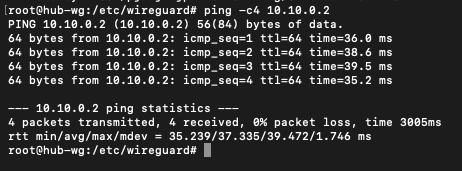
From the hub, you should be able to ping 10.10.0.2:
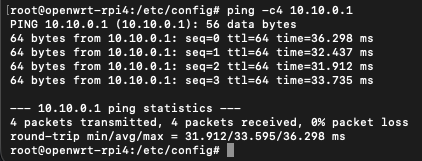
From the OpenWrt router, you should be able to ping the hub:
Extending to the branch office
Now that we have connectivity established from our HQ spoke to the hub server, we can extend this configuration to the branch office.
In later posts, I will cover how to set up a remote worker. In a couple of months, I will be in another country, where I will set up the remote connectivity and test accessing services at our HQ.